Teenage Engineering EP-1320
Best Friend for the EP-1320 Medieval
The EP-1320 Medieval ships with a library worth rearranging. Best Friend lets you build your own multi-samples for it, edit any sample properly before it lands on a pad, and snapshot a bank you want back later.


iPhone · iPad · Mac · Android

What Best Friend adds to the EP-1320
Build and edit multi-samples
Layer samples into one playable instrument on the EP-1320. Set the length, crop and loop each layer, preview it, then save the whole thing as a single waveform — and edit a single layer later without starting over.
Bounce real EP-1320 stems
Export multi-track audio stems of a Scene or Song straight off the EP-1320. All 48 pads come out isolated from the real samples and pad data — not AI separation — with fader automation included. Individual stems, group mixdowns, a stereo mixdown, and the MIDI, all ready for your DAW.
See a whole EP-1320 Scene
Every sequenced note across every bank in a Scene or Song on one timeline, with the fader automation lanes underneath and the playhead following as it plays.
Play the EP-1320 from a keyboard
A velocity-sensitive keyboard with one-button major, minor, suspended, and diminished triads, 6th, 7th, and 9th extensions, your own chords saved to any button, up to three split zones, and an arpeggiator synced to the EP-1320 clock.
Every EP-1320 pad setting on one screen
Trim, attack and release, volume, pitch, pan, play mode, time-stretch, and MIDI channel, with the waveform above them and hardware control over the trim window.
See a whole EP-1320 bank at once
Every pad in the group as a grid of waveforms and names. Toggle mute, pitch up, pitch down, and reverse on individual pads without leaving the view.
A Library for everything you save
Snapshot a single EP-1320 bank to recall later, back up the current project, or back up the entire system. Everything is named, dated, and restorable in one tap, filed alongside your bounces. Preview a backup before restoring it, extract a project from a system backup, and iCloud keeps it all in sync across your Apple devices.
A real sample editor
Crop, normalize, reverse, repitch, flatten stereo to mono, and change sample rate, then stack three-band EQ, 1176-style compression, distortion and saturation, Small Stone phaser, Juno chorus, tremolo, delay, and reverb.
Stems
Split any sample into isolated drums, bass, vocals, guitar, and instruments, then remix the levels or mute a track entirely.
Themed for the EP-1320
Every screen picks up the EP-1320 Medieval palette, in light and dark mode.
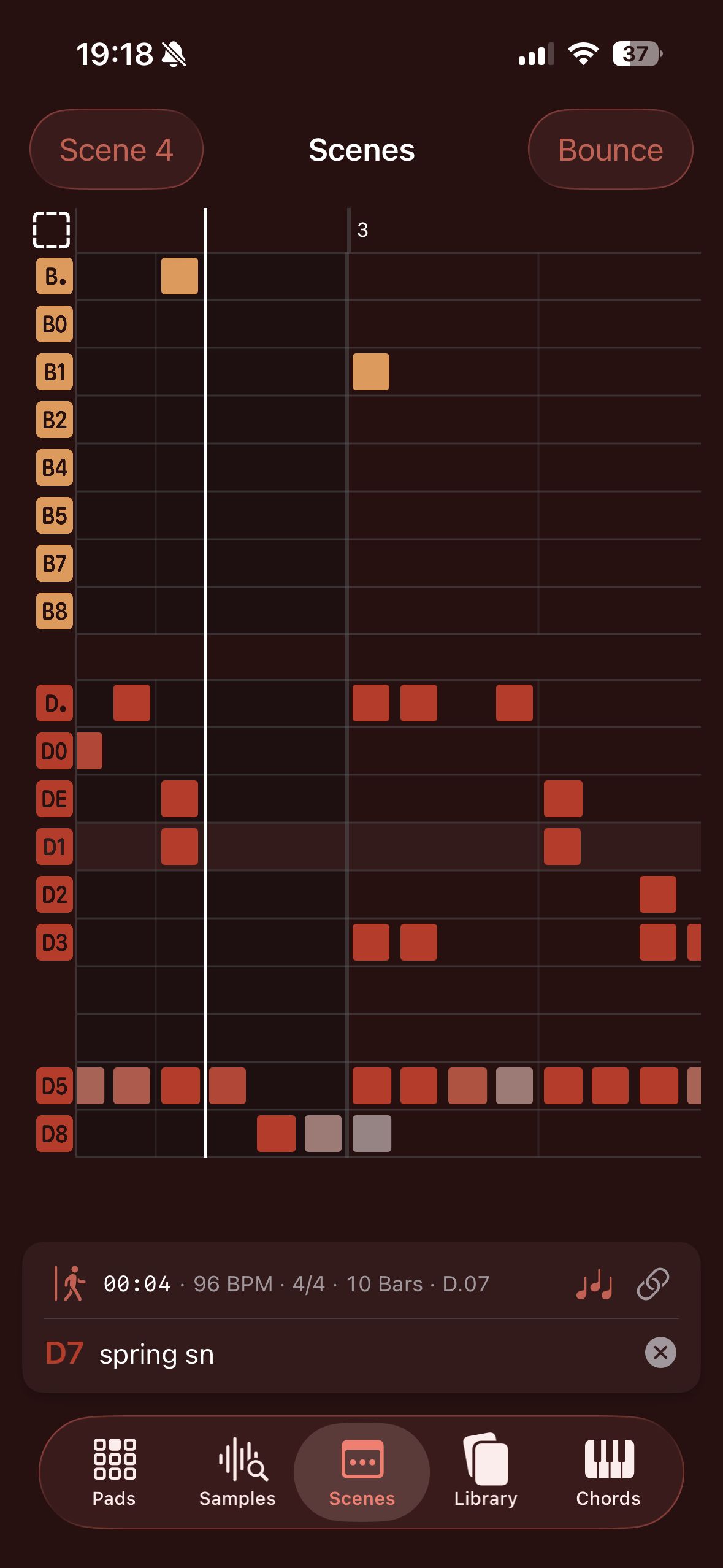
Scenes
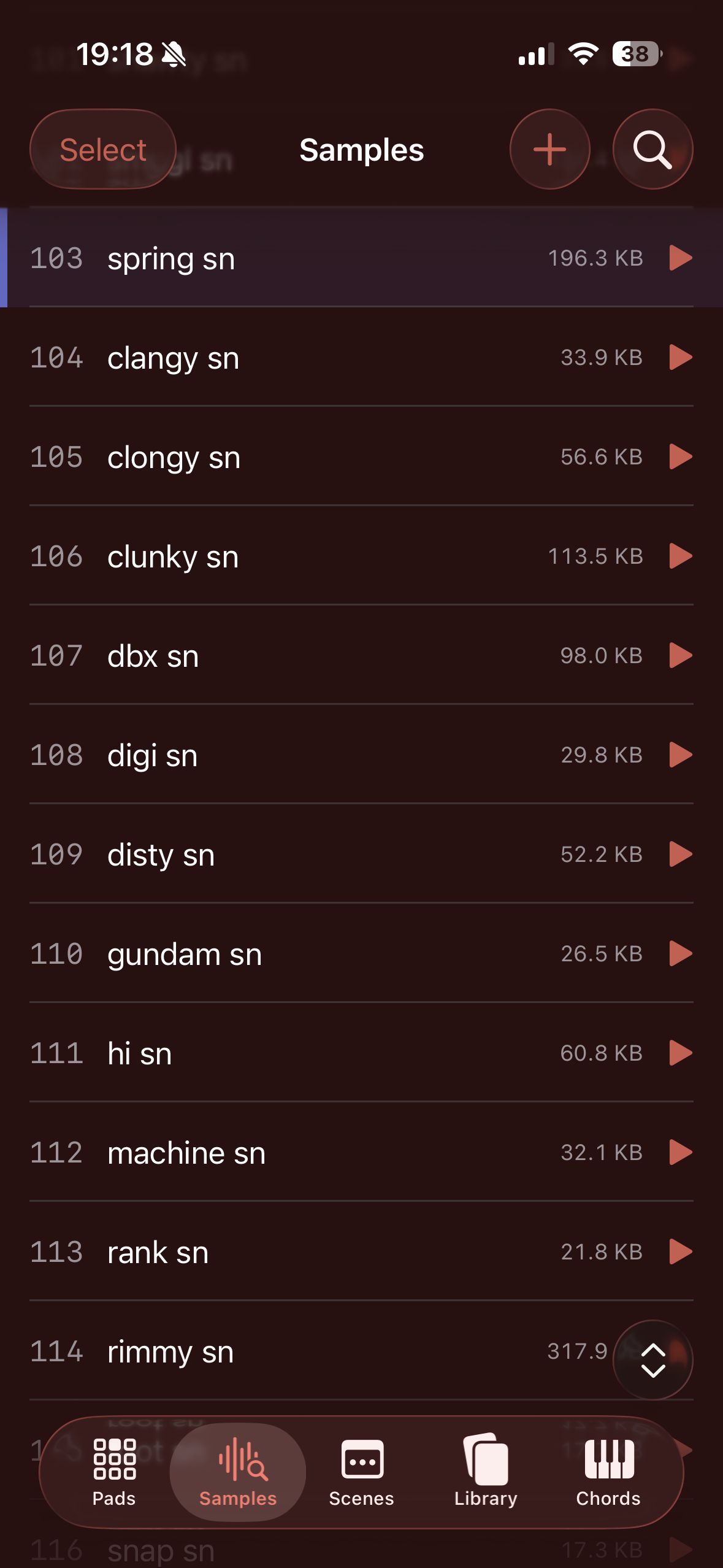
Samples
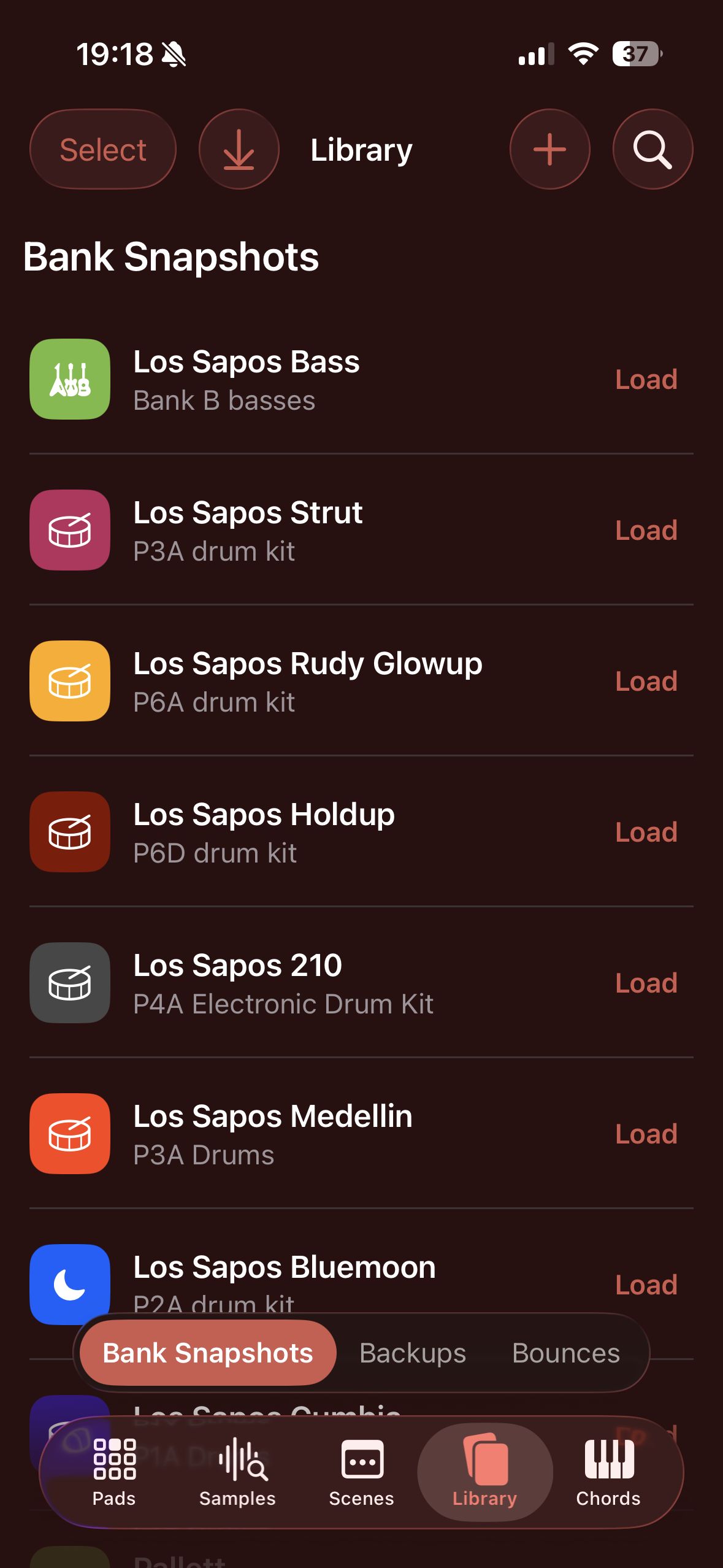
Library
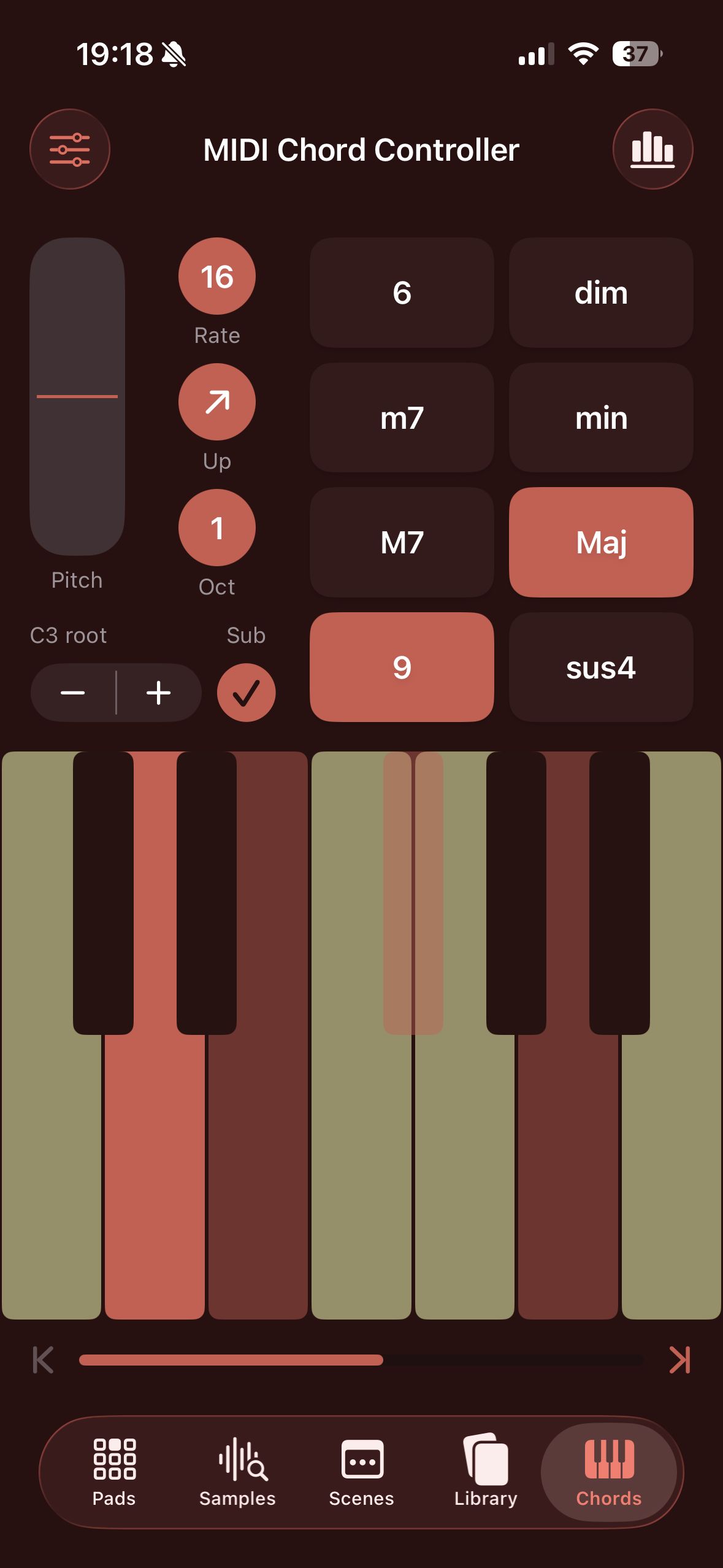
Chords


How to use Best Friend with the EP-1320
- Connect your EP-133, EP-40, or EP-1320 to iPhone, iPad, Mac, or Android Best Friend talks to your EP over a wired USB-C data connection — here is how to get the two talking.
- Which USB-C cable and adapter you need for your EP A USB-C data cable — not a charge-only cable. Here is how to tell the difference before you buy one.
- Your EP isn't showing up in Best Friend — what to check Work through these in order; the overwhelming majority of connection problems are the cable.
- Turn on MIDI clock so the playhead and arpeggiator work Two features need the EP's MIDI clock sent out — System Code 102 switches it on, 100 switches it off.
- Get samples onto your EP in bulk Import from Files or straight out of a video, then move, rename, replace, and delete samples in batches instead of one pad at a time.
- Crop, normalize, repitch, and add effects to a sample A real sample editor with studio-grade effects, so samples are finished before they ever reach a pad.
- Every effect in the sample editor, and what each control does A reference for the EQ, compressor, distortion, modulation, and space effects, with the range and default of every control.
- Find a sample's key and root note automatically Best Friend listens to the audio and reports the note or key it hears — not what the filename claims.
- Fit more samples on your EP when it runs out of space Repitch, sample rate, and mono conversion shrink a file before it is uploaded — and deleting slots frees space for a retry.
- Build a multi-sample on the EP-1320 and EP-40 Layer several samples into one playable instrument, then come back and edit a single layer without rebuilding the rest.
- Split a song into drums, bass, vocals, and instruments Pull isolated parts out of any sample, remix the levels, and send just the part you want to a pad.
- Move, share, and delete samples in bulk Select mode, drag-to-move, swipe-to-delete, bulk share, and an undo for all of it.
- See every pad in a bank at once A grid of waveforms, slot numbers, and names laid out like the hardware, so you can tell a whole group of pads apart without triggering them.
- Edit trim, pitch, pan, and every other pad setting Every parameter for a pad on one screen, with the waveform above it, instead of buried behind hardware menus.
- Mute, pitch, and reverse individual pads while you play Per-pad performance effects and mutes, toggled with the whole bank still on screen.
- Move a sample to a different pad by dragging it Drag one pad onto another to swap them — across groups too — with settings travelling along and one-tap undo.
- See your Scenes and Songs on a full timeline Every sequenced note across every bank, with fader automation lanes and a playhead that follows along.
- See your whole Song end to end Song mode draws every chained scene in one continuous timeline, with continuous bar numbers and each scene's own meter.
- See the fader automation you recorded Level, pitch, time, filter, and FX automation drawn as curves under the notes, four lanes at a time.
- Watch notes appear on the timeline as you record them Pads you play show up on the roll immediately as dashed notes, then go solid once the EP has actually recorded them.
- Play your EP from a keyboard with chords and an arpeggiator A velocity-sensitive keyboard with one-button triads, custom chords, split zones, and an arpeggiator locked to the hardware clock.
- Play chord inversions with Chord Zones Split every key into three stacked zones — root position at the top, first inversion in the middle, second at the bottom.
- Build your own chords and extensions Every chord and extension button is editable on a keyboard, up to five notes, named automatically.
- Set the velocity range and add modulation by dragging A two-handle velocity band with a floor and a ceiling, and modulation wound in by dragging up the key you are holding.
- Use the arpeggiator on your EP-133, EP-40, or EP-1320 Four modes, six rates, three octaves, locked to the EP's own clock so the phrase lands on the hardware's grid.
- Back up and restore your EP-133, EP-40, or EP-1320 Bank Snapshots, Project backups, and full System backups — all named, dated, and restorable in one tap.
- Save and recall a bank with Bank Snapshots Capture a bank, load it back onto any EP, and share it as a single file.
- Hear a backup before you restore it Play a rendered take of a project backup straight from the Library, so you restore the right one.
- Pull one project out of a system backup Open a full system backup, see only the projects it actually uses, and restore, bounce, or share any one of them on its own.
- Bounce multi-track stems into Ableton, Logic, or FL Studio Export every pad that plays as isolated audio, straight off the hardware.
- What's inside a bounce The folder layout, the stem naming, the MIDI file, the sample sources, and what sums to what.
- Bounce a project from a backup, with no EP connected Any project backup can be bounced to stems offline — the samples and pad data are already in the file.
- Search and organise your Library Bank Snapshots, backups, and bounces in one place — colour-coded, annotated, searchable, and bulk-editable with undo.
- Sync your Library across your Apple devices Backups, bounces, and Bank Snapshots move between your iPhone, iPad, and Mac over iCloud.
- Import backups and Bank Snapshots Which file types Best Friend opens, the three ways to get them in, and drag-and-drop on a Mac.
- Companion apps for the Teenage Engineering EP-Series A comparison of the apps that work with the EP-133 K.O. II, EP-40 Riddim, and EP-1320 Medieval.
FAQ
EP-1320 Medieval questions
Does Best Friend work with the Teenage Engineering EP-1320 Medieval?
Yes. The EP-1320 Medieval is fully supported, including multi-sample building, the pad editor, whole-bank view, performance effects, stem splitting, and backups. Best Friend also ships an EP-1320 theme in both light and dark mode.
Can I build multi-samples on the EP-1320?
Yes. Best Friend can build and edit multi-samples on the EP-1320. Layer several samples together, set the length, crop and loop each layer, preview the result, then save it as a single waveform. Individual layers stay editable afterwards.
What cable do I need to connect an EP-1320 to an iPhone or Android phone?
Use a USB-C to USB-C data cable to connect your EP-1320 Medieval to your phone, tablet, or Mac. Charge-only cables will not work. On a Lightning iPhone or iPad, use an MFi-certified Lightning to USB adapter together with a USB-IF certified USB-A to USB-C cable. On Android, your device needs USB OTG support.
Can I back up my EP-1320 Medieval?
Yes. Best Friend can take a Bank Snapshot of a single bank, back up the project you are working on, or back up the entire system on your EP-1320 Medieval. Every backup is named and dated, and any of them can be loaded back in one tap. You can preview a backup's audio before restoring it, pull a single project back out of a full system backup, and on Apple devices iCloud keeps everything in sync across your iPhone, iPad, and Mac.
Can I export audio stems from my EP-1320 Medieval?
Yes. Best Friend bounces multi-track audio stems of a Scene or an entire Song directly off your EP-1320 Medieval. Every one of the 48 pads is isolated using the real samples and pad data rather than AI separation, with fader automation included. Export all 48 individually, as group mixdowns, or as a stereo mixdown, plus the MIDI data, then open them in your DAW.
Can I add my own samples to the EP-1320?
Yes. Import samples from Files or pull audio straight out of a video, edit them in Best Friend, then send them to any pad. Existing samples can be edited and replaced in place.
What do I need to run Best Friend?
Best Friend requires iOS 26, iPadOS 26, or macOS 26 or later, or Android 12 or later. A Mac needs Apple silicon (M1 or later). Your EP-1320 Medieval itself needs no update — the app talks to it over USB.
Other EP-Series gear
- Best Friend for the EP-133 K.O. II → Best Friend is the unrivalled companion app for the Teenage Engineering EP-133 K.O. II. Edit every pad setting, see a whole bank at once, split stems, and take Bank Snapshots from iPhone, iPad, Mac, or Android.
- Best Friend for the EP-40 Riddim → Best Friend is the unrivalled companion app for the Teenage Engineering EP-40 Riddim. Build multi-samples, reach the Supertone settings, edit pads, and back up your projects from iPhone, iPad, Mac, or Android.
Compatibility
What you'll need
Best Friend is an extended display and management tool that requires a connection to the Teenage Engineering hardware. Use a USB-C to USB-C data cable.
On a Lightning iPhone or iPad, use an MFi-certified Lightning to USB adapter with a USB-IF certified USB-A to USB-C cable.
Requires iOS 26, iPadOS 26, or macOS 26 or later, or Android 12 or later. On a Mac you'll need Apple Silicon.
Your EP needs a Best Friend.
Download now.